Subscribing to a Podcast's Exclusive Content
Last updated: May 29, 2026
Step-by-Step Instructions for Subscribing to Exclusive Content
You recently signed up for your favorite creator's Exclusive Content and now you want to know how to listen to it on your favorite listening app? Check out the steps below!
Subscribing Through RedCircle
1) Log in to your account on redcircle.com and click on the show you're sponsoring
2) Click on the red Listen in App button:
3) You can either listen through Apple Podcasts, or just copy the RSS Feed to add the show to your preferred listening app:
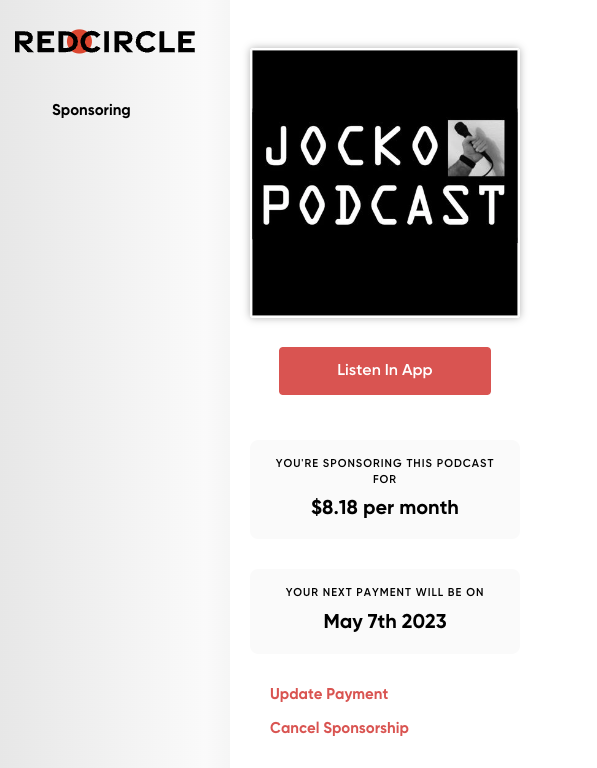
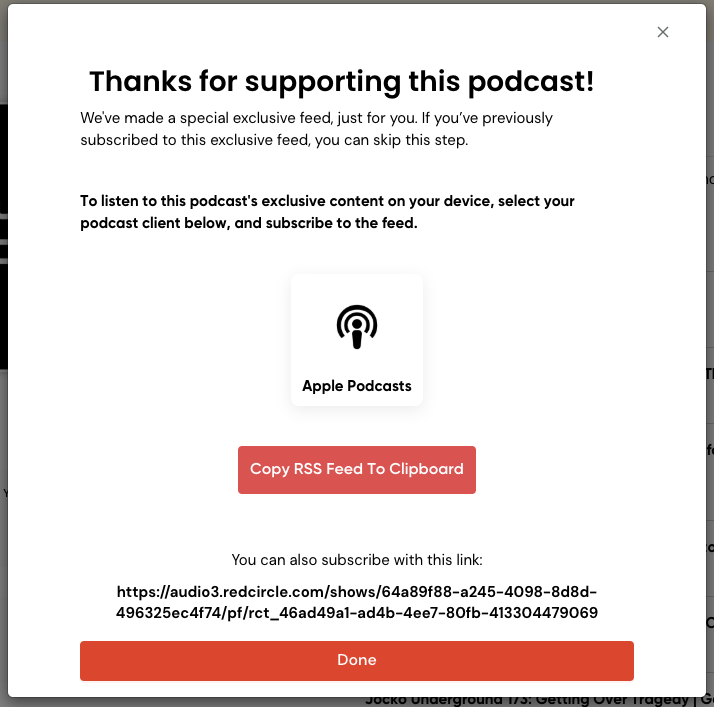
You might see different buttons on this pop-up screen depending on your device and what apps are currently installed. You may also see Choose Player, which brings up a menu on your device to select the right app.
If your preferred podcast app isn't listed, or you're having other issues, you can always subscribe to the RSS feed for your exclusive content feed manually.
Subscribing Manually
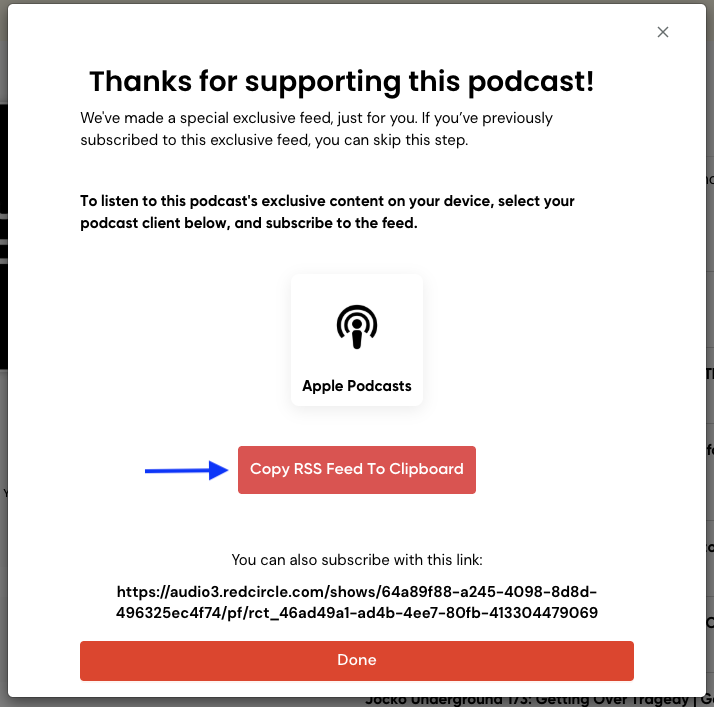
To subscribe manually, click the red Copy RSS Feed to Clipboard button, or highlight and copy the URL shown near the bottom:
Follow the instructions for your podcast app of choice below:
Apple Podcasts (Desktop)
Click on File in the top left menu
Select Add a Show by URL... from the dropdown
Paste the RSS Feed URL
Click Subscribe
Apple Podcasts (iOS)
Tap Library on the bottom row of icons
Tap Edit near the top right
Select Add a Show by URL…
Paste the RSS Feed URL
Tap Subscribe
Podcast Addict
Press the plus (+) button near the top right
Select the RSS button
The RSS Feed URL should already be pasted in, just click Add
Player FM
Select 'Settings' from the bottom right
Click Import OPML/RSS
Tap the lock icon labeled Add private RSS feed (Player FM may require you to login or sign up at this step if you haven't already)
Paste in your RSS feed and continue
Tap the + Subscribe button near the top right
Castbox
Paste the RSS Feed into the search bar on the Discover tab
Tap the orange Subscribe button near the top right.
Pocket Casts
Paste the RSS Feed into the search bar on the Discover tab
Tap on the podcast that appears in the search results
Tap the Subscribe button
Breaker
Tap Library
Select Subscriptions
Tap the plus (+) button in the upper right
Select Add from link
Paste the feed URL and tap done!
Overcast
Tap the plus (+) button near the top right
Select Add URL near the top right
Paste the RSS Feed URL and hit done!
Downcast
Tap Add on the bottom bar
Press Add Podcast Manually
In the “Feed” field, paste the RSS Feed URL
Hit Subscribe near the top right
What about Spotify & iHeart?
Not all apps support custom RSS feeds. So sadly, you'll have to listen using one of the apps above (or another app that supports custom RSS feeds). Our top picks on Android are Podcast Addict and Pocket Casts. Give them a whirl!